AI Vocal Remover: How to Remove Vocals from Songs Online
Learn how to remove vocals from a song with EZAudio’s free online vocal remover. Upload a track, get a clean instrumental and an acapella, then fine-tune the volume and download both — no install, no credit card.
EZAudio Team
Last Modified: August 19, 2026
What Is an AI Vocal Remover?
An AI vocal remover separates a song into two tracks: the lead vocals and the instrumental (music without the singing). Instead of spending hours fighting with equalizers or hunting for official karaoke versions, you upload the song and the model splits it in seconds — perfect for karaoke nights, cover videos, remixes, practice sessions, and backing tracks.
EZAudio’s vocal remover runs entirely in your browser with no desktop software to install. It uses the open-source Demucs model on a GPU cluster, so the heavy lifting happens in the cloud and you just download the finished stems.
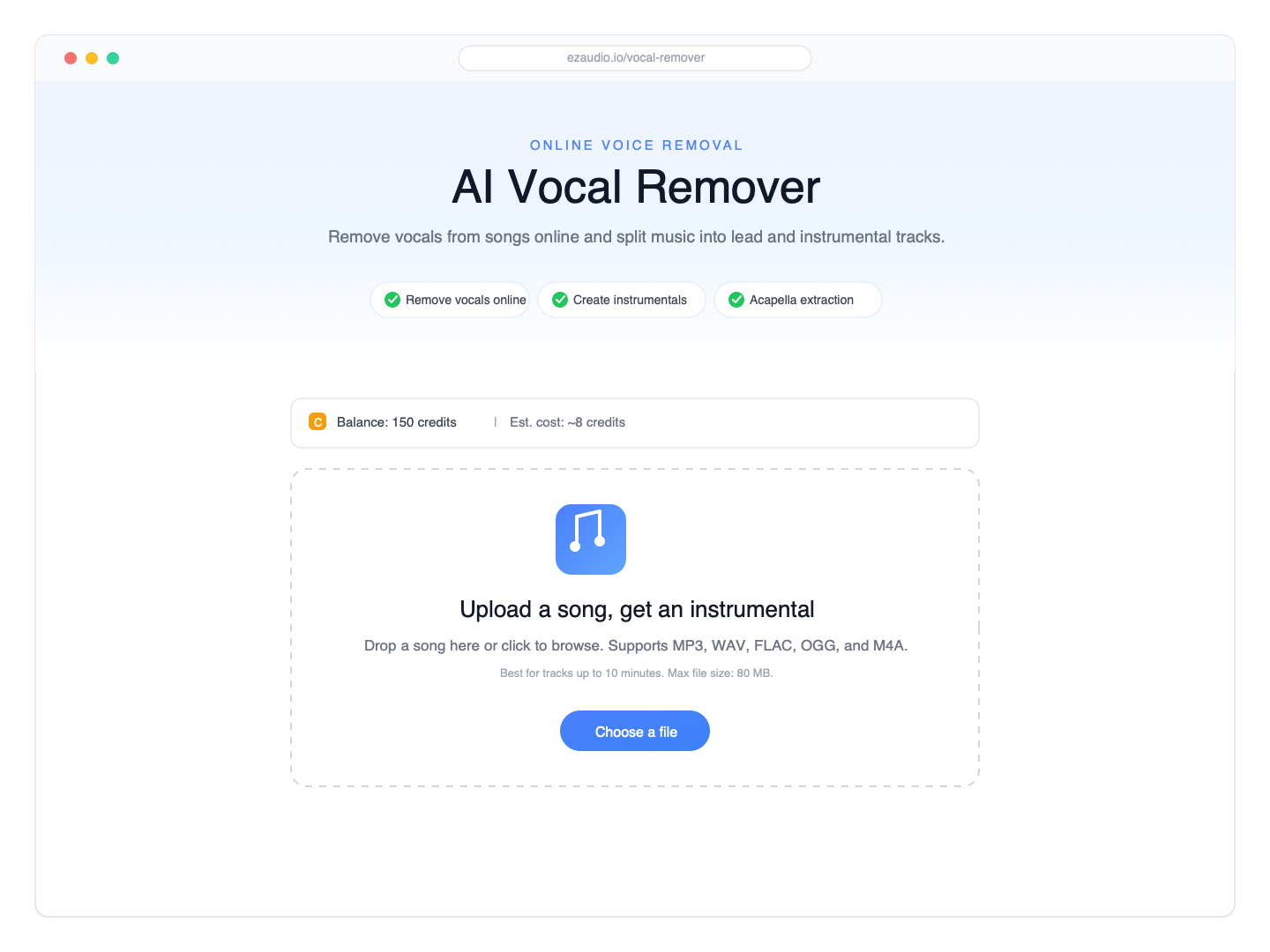
How to Use the Vocal Remover
Removing vocals from a song takes just three steps — and you can start immediately without creating an account.
- Upload a song — Drag and drop an MP3, WAV, FLAC, OGG, or M4A file, or click to browse. Tracks up to about 10 minutes and 80 MB work best.
- AI separates the vocals — EZAudio removes the singing from the instrumental. A progress bar keeps you updated while the model works.
- Preview, adjust, and download — Play the two stems side by side, fine-tune each track’s volume, then download the vocal or instrumental file.
Preview and Adjust: Music and Vocal Side by Side
When processing finishes, EZAudio opens a result player with the two separated tracks stacked together. The Music row shows the instrumental waveform in green and the Vocal row shows the isolated singing in indigo, both with their own playhead so you can jump to any moment with one click.
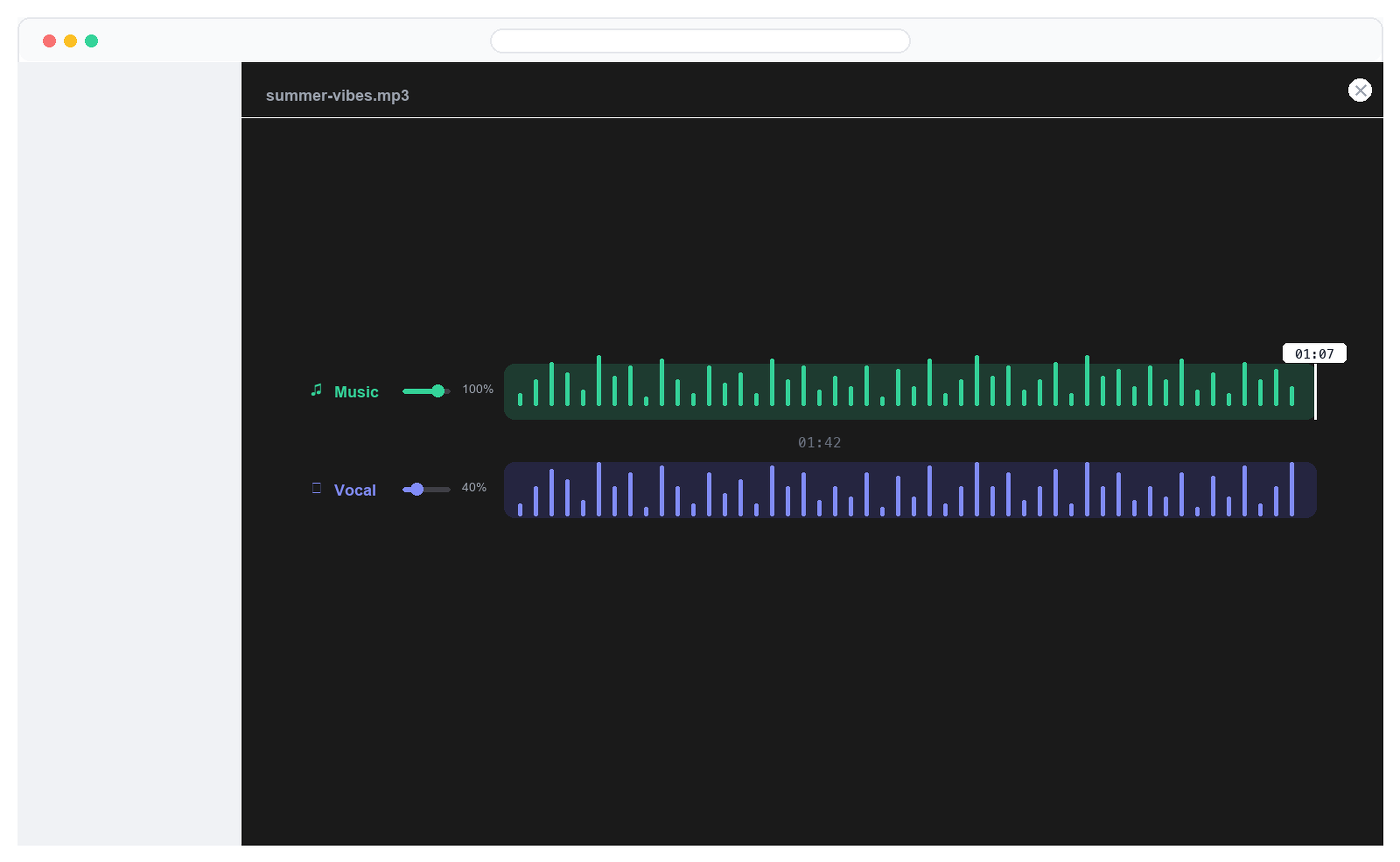
Each track has its own volume slider and percentage readout. Drag Music to 0% to create a pure acapella, drag Vocal to 0% to get a clean instrumental backing track, or blend the two to taste while you practice along. Hit play to preview the blend, then use Save to download the vocal, the instrumental, or the original file.
Supported Formats and Limits
| Detail | Value |
|---|---|
| Audio formats | MP3, WAV, FLAC, OGG, M4A |
| Outputs | Vocals + instrumental (2 stems) |
| Best for | Tracks up to ~10 minutes, max 80 MB |
| Player features | Separate volume per stem, synchronized playback, click-to-seek waveforms |
| Downloads | Vocal, instrumental, or original file |
Who Should Use a Vocal Remover?
- Karaoke and backing tracks — strip the voice to sing along or rehearse to a clean instrumental.
- Remixers and producers — grab an acapella for mashups, edits, and sample-based tracks.
- Cover artists — practice or record covers over the official instrumental.
- Creators — clean up voice and music before repurposing audio in short-form content.
Your Songs Stay Private
EZAudio encrypts files in transit, processes them on secure servers, and deletes temporary files shortly after the task finishes. Your audio is never used to train AI models or shared with third parties.
Frequently Asked Questions
Is the vocal remover really free?
Yes — anonymous users get 10 free credits daily with no registration or credit card. Registered users get 20 daily credits plus a one-time 50-credit bonus. A short song only costs a few credits.
What’s the difference between Vocal Remover and Splitter?
The vocal remover focuses on two outputs: voice and instrumental. The splitter goes further and separates a song into four stems — vocals, drums, bass, and other instruments.
Can I create an acapella with this?
Yes. After separation, turn the Music volume slider to 0% and download the Vocal track for a clean acapella.
Which files can I upload?
Common music files such as MP3, WAV, FLAC, OGG, and M4A. Keep files within the duration and size guidance shown on the page for smooth processing.