How to Cut Audio Online with EZAudio: Trim an MP3 Step by Step
Choose start and end times, keep or remove a region, preview the cut and export a clip without uploading your recording.
EZAudio Team · Content standards
Last Modified: October 24, 2026
Use EZAudio Audio Cutter to keep a short clip or delete an unwanted section of one recording. The editor processes audio on your device. This guide explains the controls, the difference between Cut and Remove, and how to check the exported file.
Product guide by EZAudio Team, October 24, 2026. Screenshots show the actual editor with a generated 60-second test tone, not a customer recording or an audio-quality benchmark.
1. Open your audio file
Open the online audio cutter and choose Browse my files. Select a recording you have permission to edit. MP3, WAV, OGG and FLAC are common inputs; successful decoding depends on your browser and the file's codec. Wait for the waveform before selecting a region.
The cutter does not upload the audio. Long recordings can require substantial device memory. Keep your original file and use a shorter compatible copy if decoding fails; renaming an extension does not convert a file.
2. Set the start and end of your clip
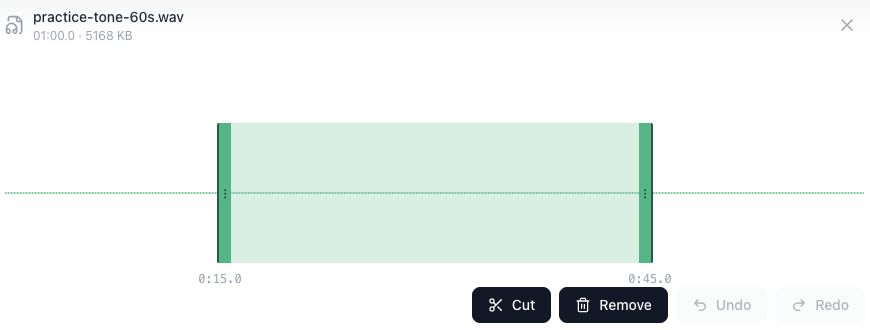
Drag the region handles on the waveform, or enter seconds in Start and End and move focus out of each field to apply the value. For example, to keep the middle 30 seconds of a 60-second recording, set Start to 15 and End to 45. Confirm that the highlighted waveform region matches those boundaries before continuing.

3. Choose Cut or Remove
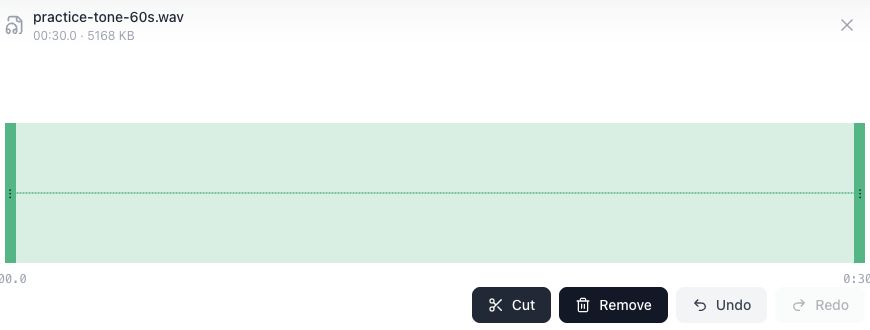
Cut keeps the selected region and discards the audio outside it in the working copy. With a 15–45 second selection, the intended result is a 30-second clip. Remove deletes the selected region and joins what remains on either side. To remove a mistake or pause, select that unwanted region and use Remove instead.
These actions do not create multiple separate files. Use Undo if you chose the wrong action, then adjust the region again. To arrange multiple clips one after another, export them and open Audio Joiner.
4. Preview and export
Listen after the cut, particularly around the beginning, ending or newly joined point. A hard cut in the middle of a sound may click or interrupt a word. Move the boundaries to a quieter point if needed. Select the output format and press Save to download a copy.
- MP3: a compressed copy for common sharing and playback workflows.
- WAV: uncompressed audio, usually larger, useful for further editing.
- OGG or FLAC: use when your destination supports the format. FLAC cannot recover detail already lost from a compressed source.
Reopen the downloaded file and check its duration and beginning/end. Browser playback alone does not prove the exported file is correct. Save your output before refreshing or leaving the tab.
What to do with the clip
Use Audio Joiner to combine clips sequentially or Volume Changer to adjust gain. You can also prepare a short recording for audio transcription; its timestamps start from the trimmed clip, and transcription has its own credit and duration rules.
Common questions
Does cutting audio require an account or credits?
The local cutter does not require an account or consume credits. Other tools, including AI transcription, have separate rules.
Why will my file not open?
The browser may not support its codec, or the recording may exceed available memory. Try a shorter file or convert a copy using Audio Converter. That conversion tool uploads files for server processing, unlike the local cutter.
Is this a multitrack editor?
No. The cutter edits one recording. Joining clips sequentially and mixing simultaneous tracks are different tasks.
Ready to edit? Open EZAudio Audio Cutter, select your region, preview it and save a copy.