Video to Text Converter: Turn Any Video into a Timestamped Transcript Online
Learn how to use EZAudio’s video-to-text converter. Upload or paste a video URL, get an accurate timestamped transcript with speaker labels, then generate an AI summary — all in your browser, no install required.
EZAudio Team
Last Modified: August 14, 2026
What Is a Video to Text Converter?
A video to text converter extracts the speech track from a video and turns it into readable, timestamped text. Instead of manually typing out meeting recordings, lectures, interviews, or product demos, you upload the file and get a searchable transcript in seconds — ready to skim, quote, or share.
EZAudio’s video transcription tool goes one step further than plain speech-to-text. It keeps your video for synchronized playback, labels each speaker automatically, highlights words as they’re spoken, and can generate a structured AI summary of everything that was said.
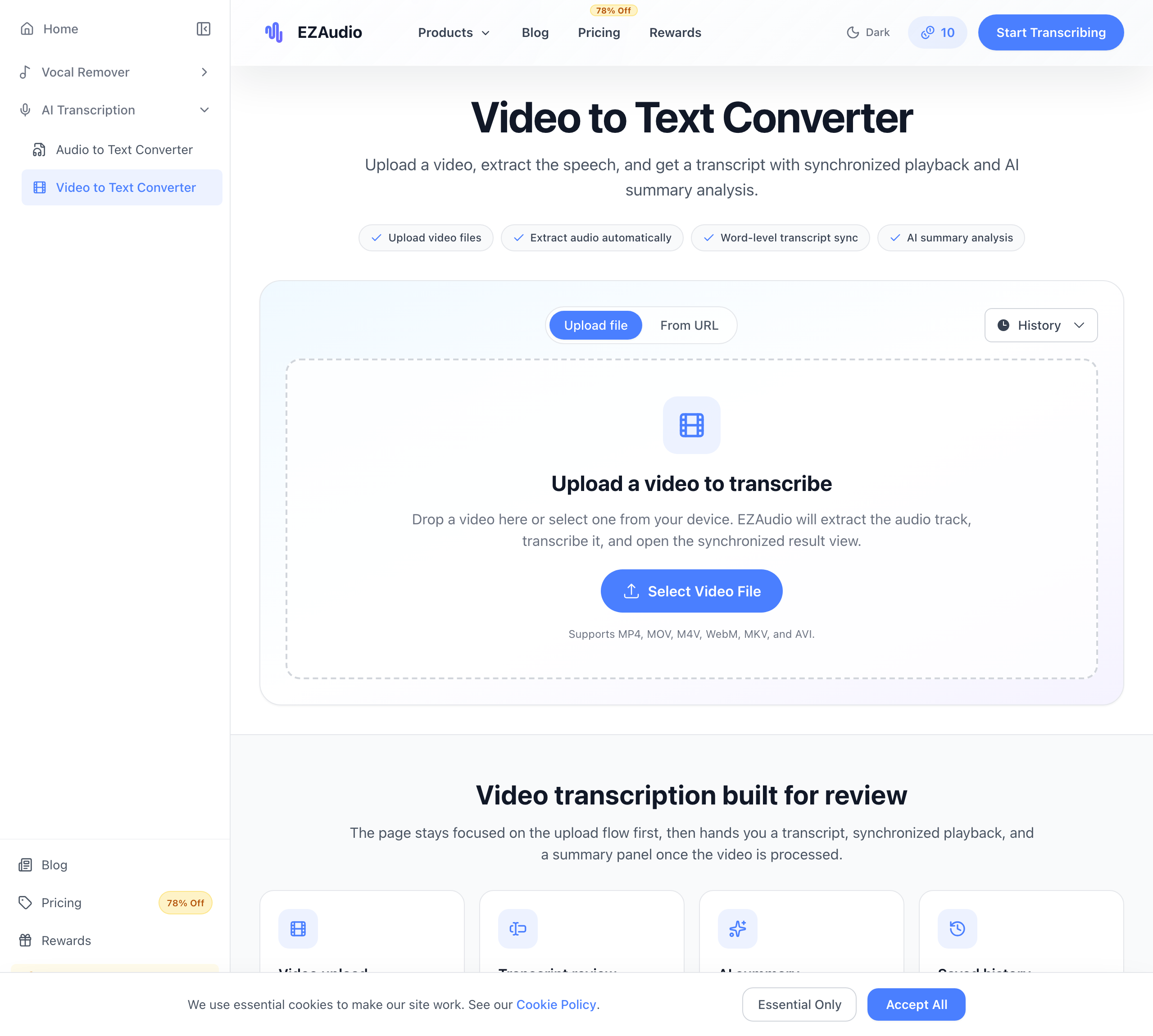
How to Use the Video to Text Converter
Using the converter takes just three steps — and you can start right away without creating an account.
- Upload a video or paste a link — Drag and drop an MP4, MOV, WebM, MKV, or AVI file, or switch to “From URL” and paste a direct link to a video file. EZAudio fetches it securely and extracts the audio track automatically.
- AI transcribes with timestamps — The speech engine transcribes your video, splits it into segments, and adds word-level timestamps so you can jump to any moment with one click.
- Review, summarize, and export — Read the transcript beside the playback, relabel speakers, generate an AI summary, and export when you’re done.
Reviewing the Transcript with Synchronized Playback
Once processing finishes, EZAudio opens a split view: your video plays on the left while the transcript scrolls beside it. The current segment is highlighted and individual words light up as they are spoken, so you can follow along easily — or click any timestamp to jump the video straight to that moment.
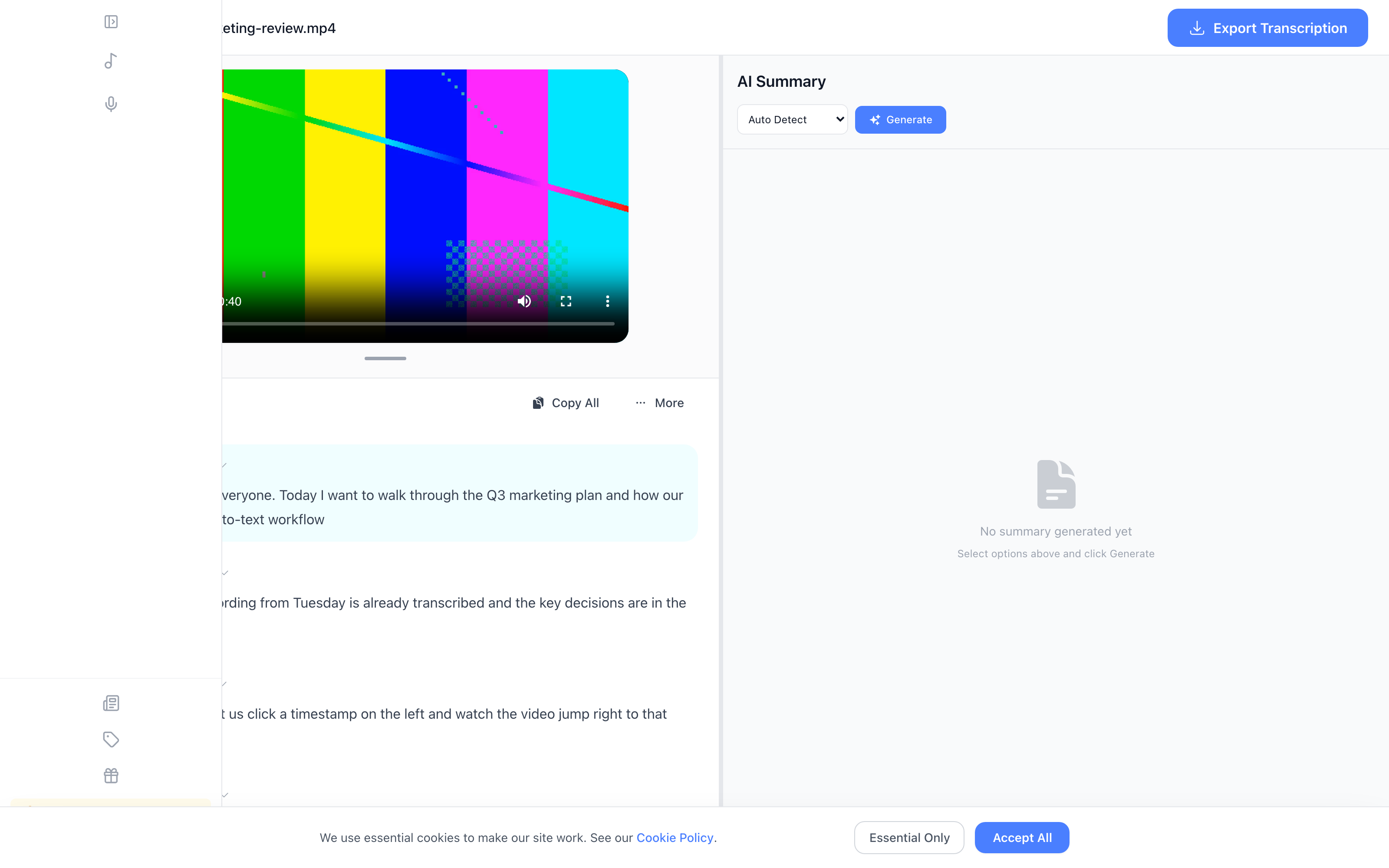
You can also customize how the transcript looks. Use the “More” menu to toggle timestamps and speaker labels on or off, and the Auto Scroll toggle keeps the transcript locked to the current playback position.
Speaker Labels: Keep Meetings and Interviews Organized
For recordings with more than one person — meetings, interviews, panel discussions — EZAudio automatically detects speaker changes and labels each segment. If the labels don’t match reality, rename a speaker or merge segments with a couple of clicks. This makes multi-speaker videos dramatically easier to skim.
Generate an AI Summary in One Click
After transcription, open the right-hand panel and click Generate to create a concise AI summary of the video. You can pick the output language and choose between a bullet-point overview or a more detailed breakdown. The summary streams in live, so you see it appear in real time, and you can copy it straight to your clipboard or export it along with your transcript.
Supported Formats and Limits
| Detail | Value |
|---|---|
| Video formats | MP4, MOV, M4V, WebM, MKV, AVI |
| Input methods | File upload or direct video URL |
| Language support | 98 languages with auto-detection |
| Transcript features | Word-level timestamps, speaker labels, synchronized playback |
| AI summary | Bullet or detailed, multi-language, streamed live |
Who Should Use a Video to Text Converter?
- Students — turn lecture recordings and training videos into searchable study notes.
- Journalists and researchers — transcribe interviews and find exact quotes with timestamps.
- Business teams — document meetings, demos, and stand-ups with speaker labels and action-item summaries.
- Content creators — generate subtitles, captions, and show notes from raw footage.
Your Videos Stay Private
EZAudio processes files in memory where possible, encrypts everything in transit, and deletes server-side temporary files within 24 hours. Your audio and transcripts are never used to train AI models, and nothing is shared with third parties.
Frequently Asked Questions
Is the video to text converter really free?
Yes — anonymous users get 10 free credits daily with no registration or credit card. Registered users get 20 daily credits plus a one-time 50-credit bonus. Each transcription uses a small number of credits based on the video’s duration.
Can I paste a YouTube link instead of uploading a file?
The converter accepts direct links to video files (MP4, MOV, WebM, MKV, AVI). The file is fetched securely by EZAudio before transcription starts.
Can I edit the transcript?
Yes. You can rename speakers, apply a speaker change to the current segment or across the whole transcript, and toggle timestamps and labels on the fly.
What export formats are available?
Transcripts can be exported as TXT, DOCX, PDF, SRT, and VTT — plus CSV with word-level timestamps for spreadsheet workflows.